
If this is your first time scheduling posts on Facebook, yeah… the Schedule button is NOT easy to find.
I’ve been there. And honestly, it’s kind of funny how Facebook hides it from us.
So I’m writing this to save you the headache.
How to schedule a post on Facebook
Go to your Facebook page and find the “What’s on your mind?” box.
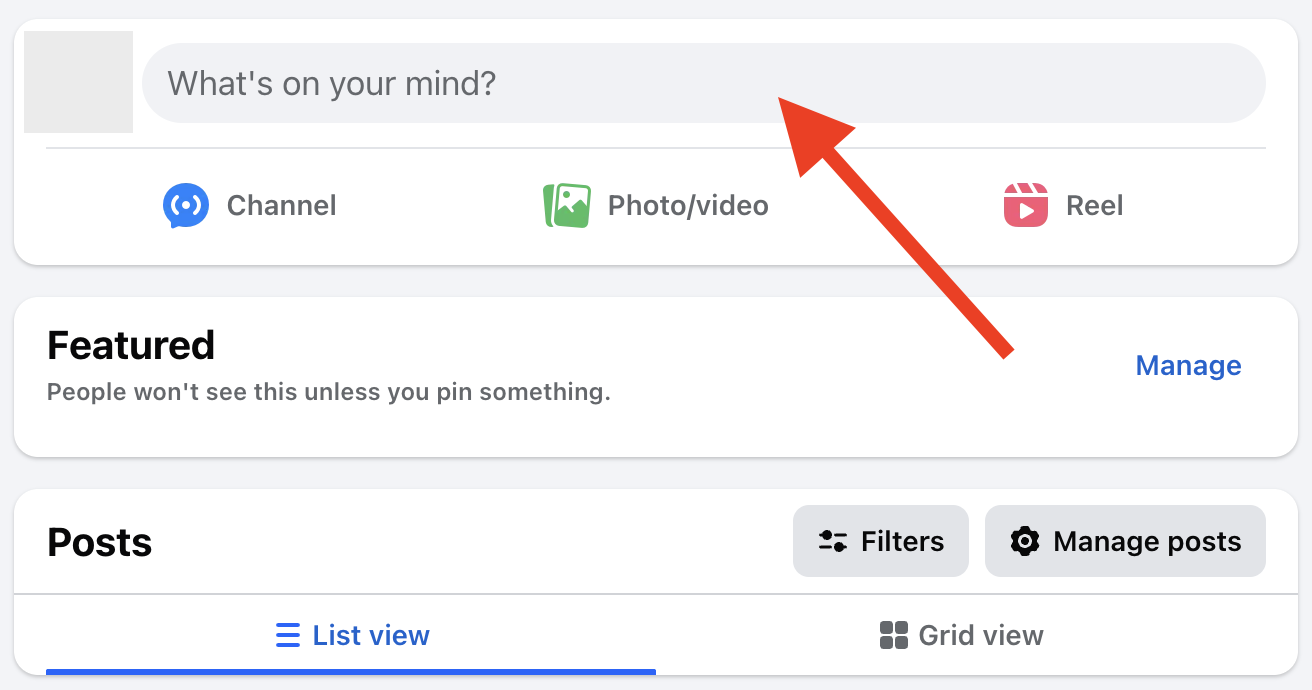
Click it to open the post composer.
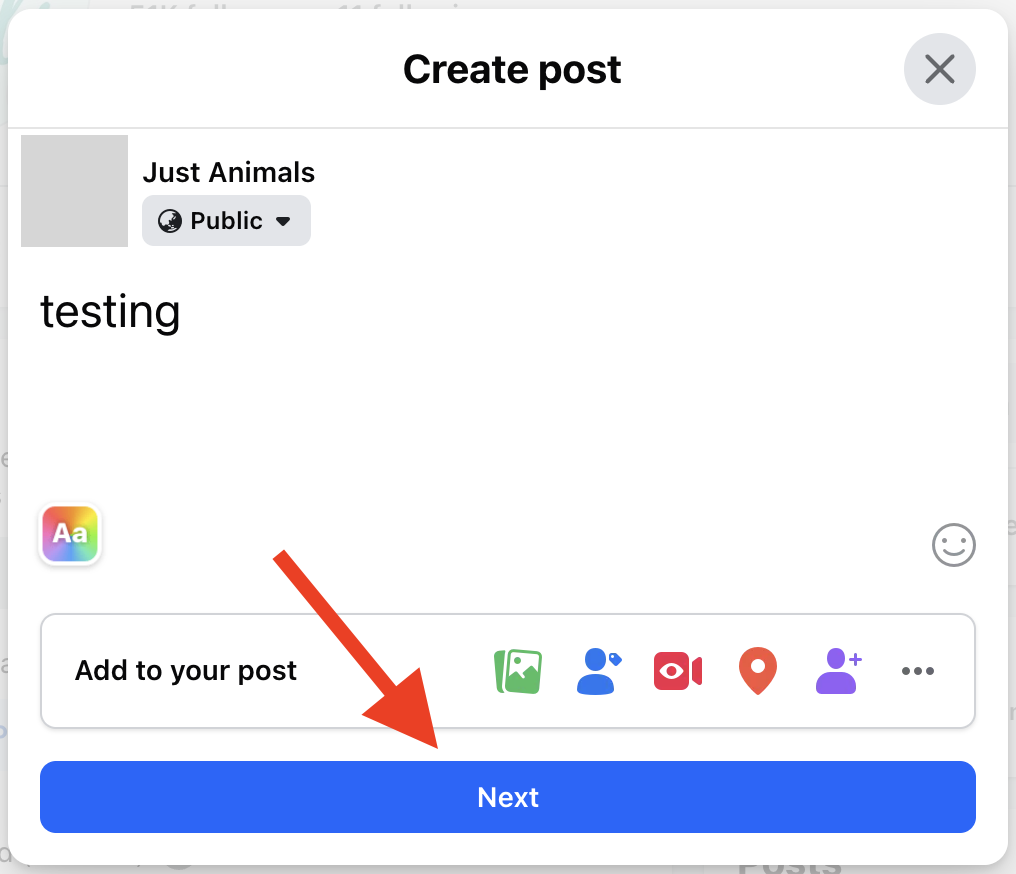
Write your caption, add images if you want… then hit Next.
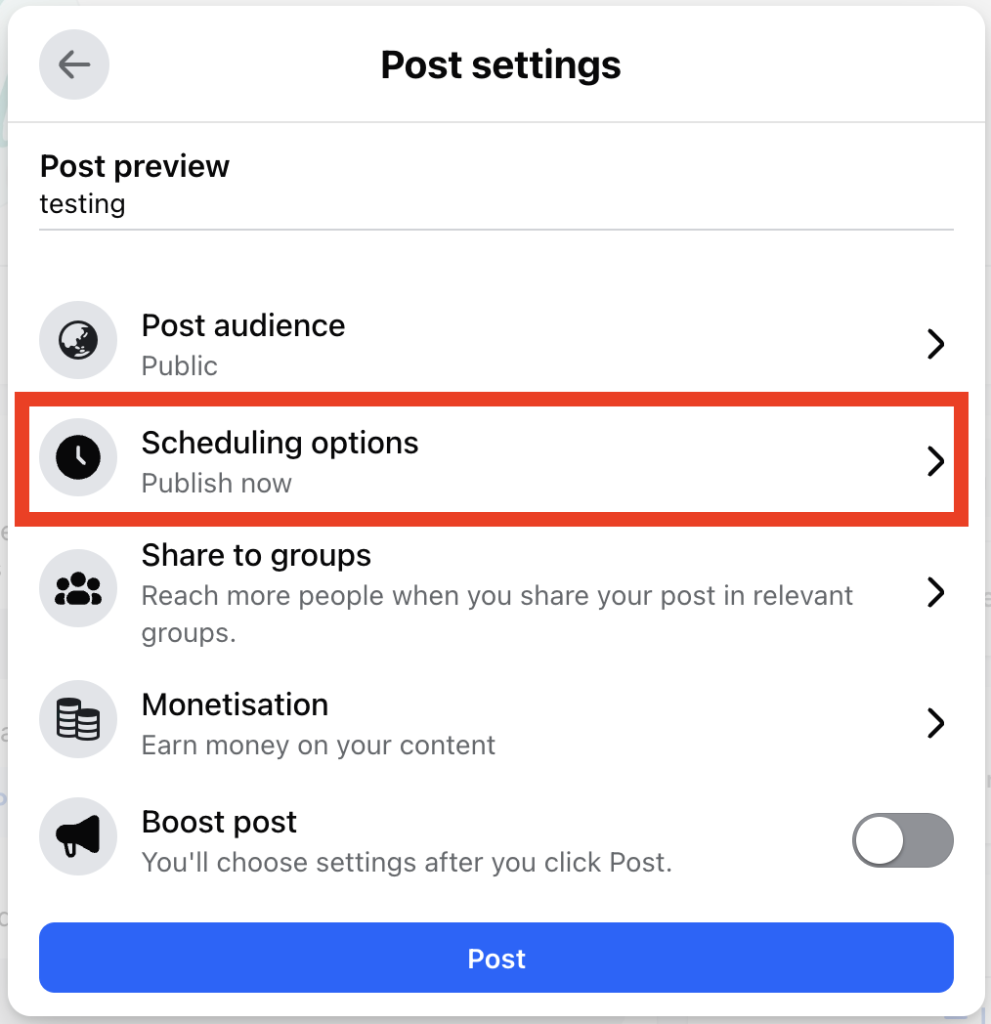
Now here’s the part most people miss:
Inside Post settings, you’ll see Scheduling options.
Click that → pick your date and time → done.
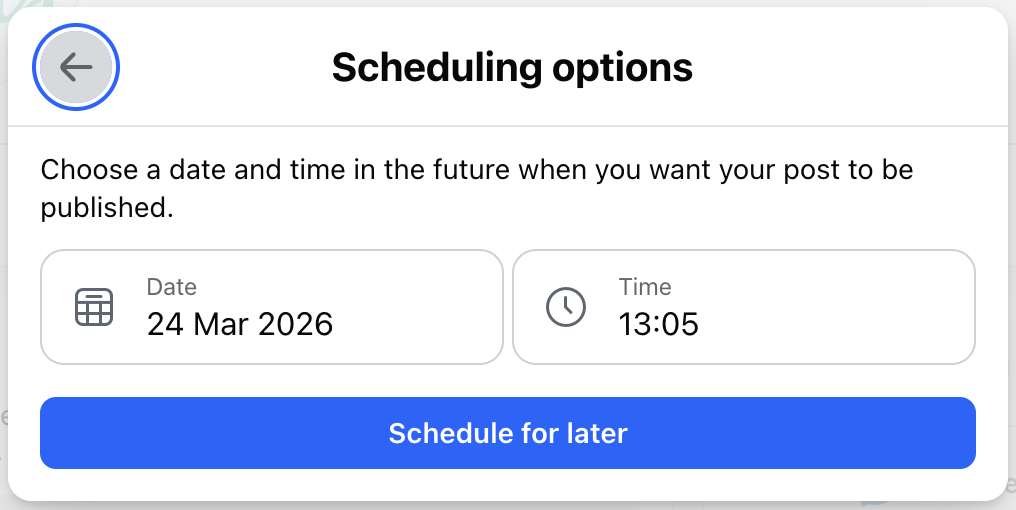
That’s it. Your post is now scheduled.
If you’re scheduling from the Professional Dashboard, the flow is basically the same as above.
If you’re using Meta Business Suite, things look a little different when you create a post.
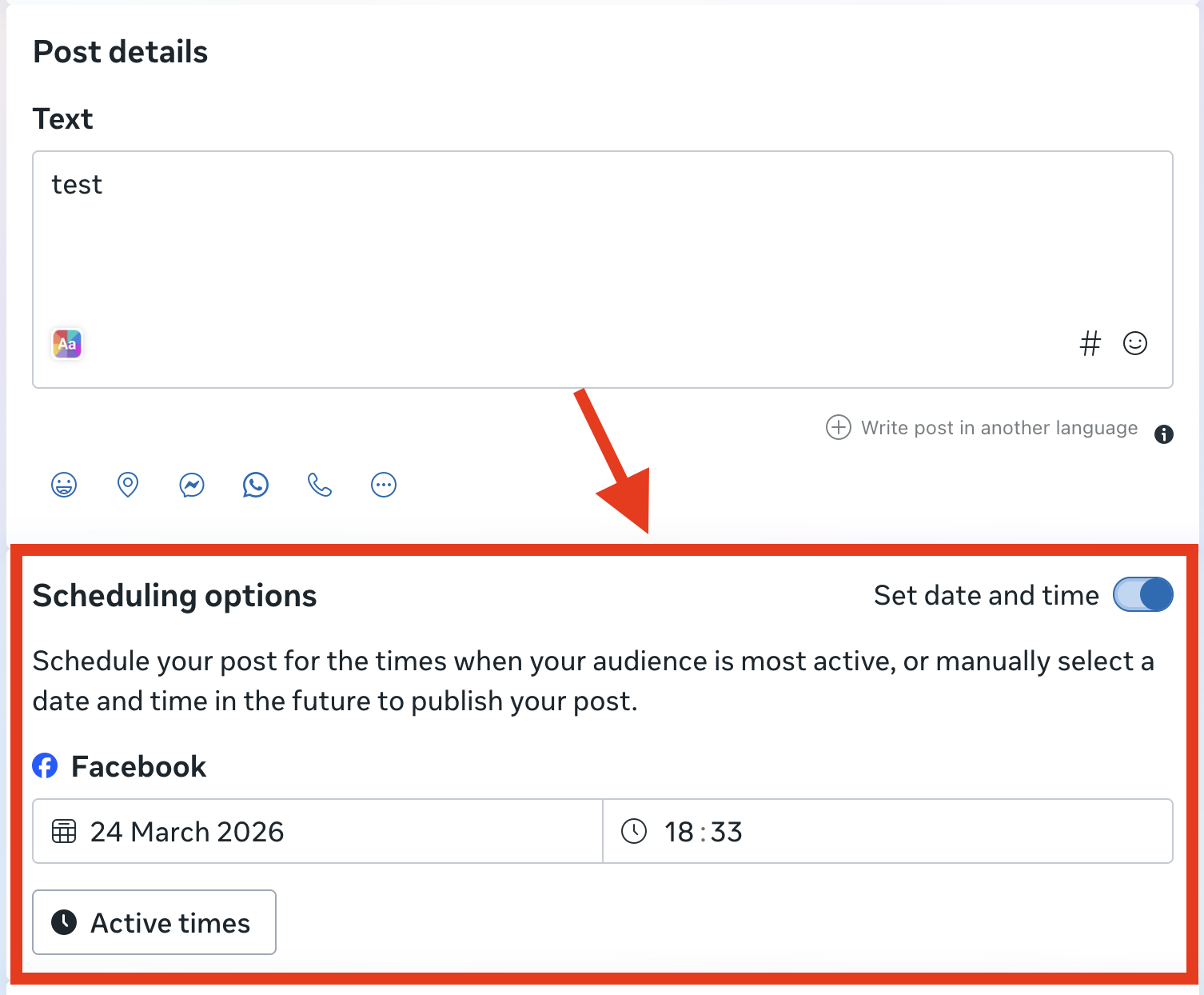
One nice thing about Meta Business Suite is that it actually shows recommended posting times, based on when your audience is most active.
If you want to go deeper, you can read more about the best posting times here and here.
Where to find your scheduled posts
Go to:
Professional Dashboard → Content → Content Library → Scheduled tab
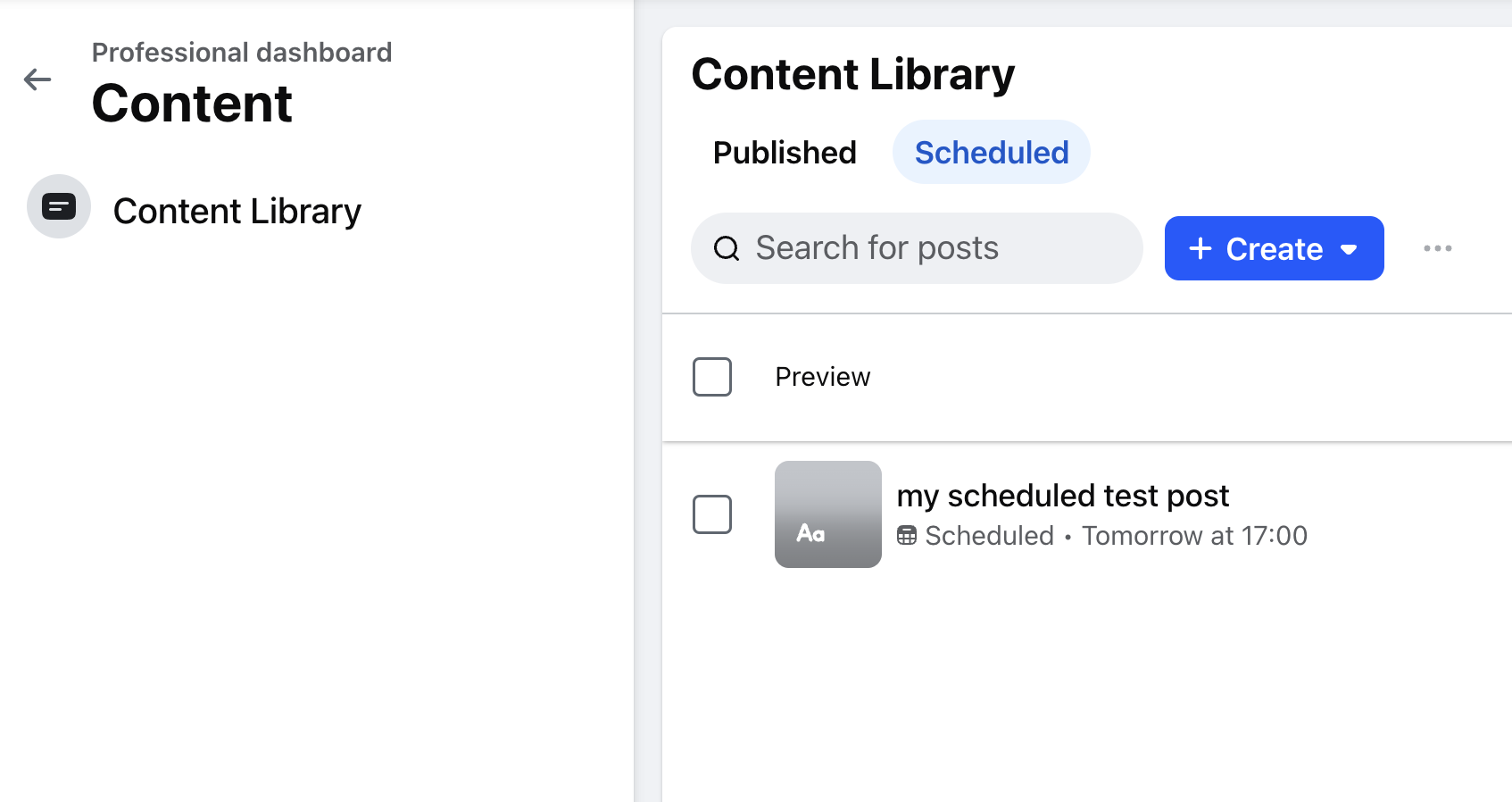
You’ll see all your scheduled posts there.
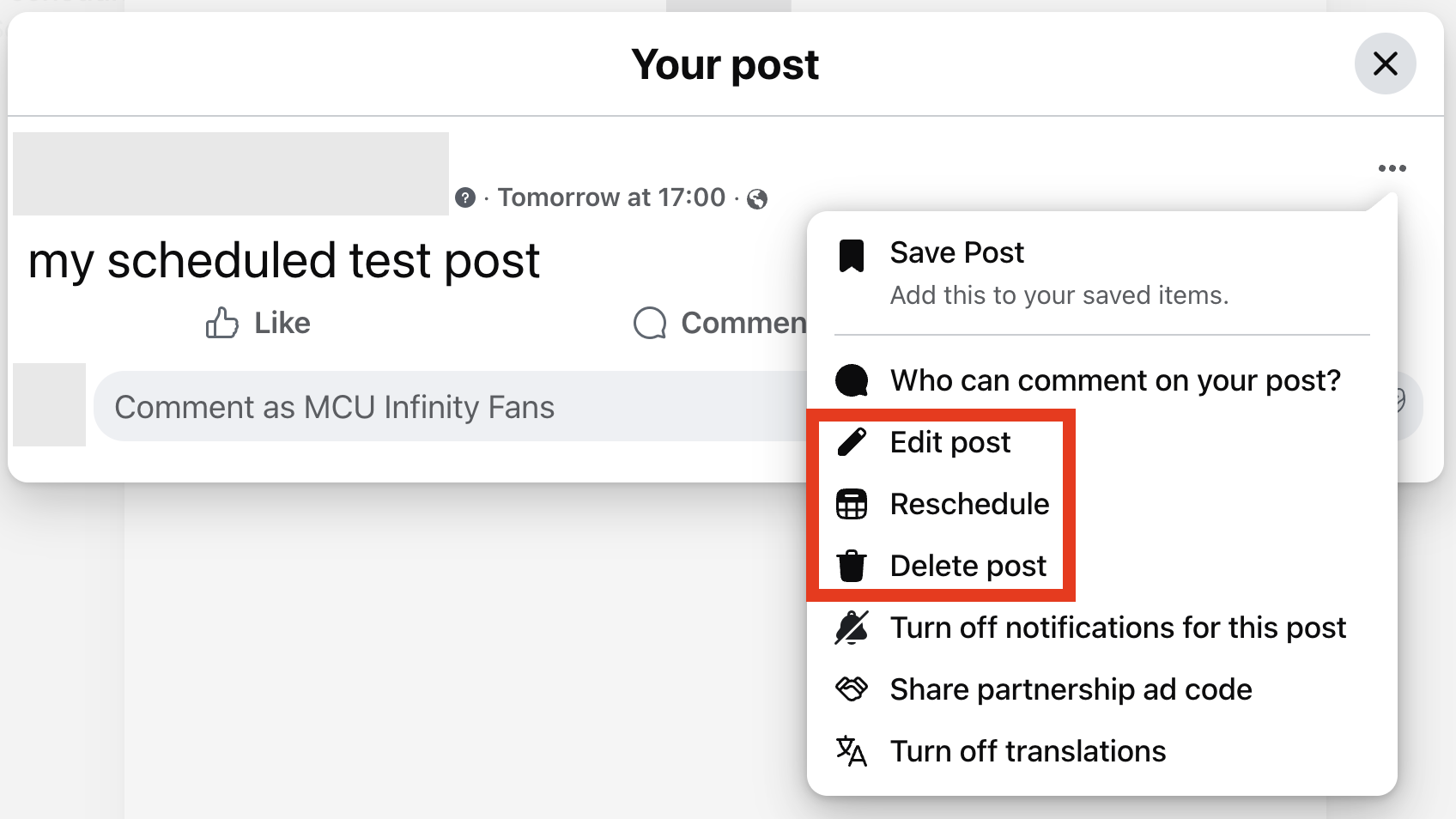
From here, you can:
- Edit
- Reschedule
- Delete
If you want to cancel a scheduled post, just delete it. Simple.
What app should you use to schedule Facebook posts?
There are a ton of tools out there. Some are expensive as hell. Others just aren’t built for Facebook publishers.
That’s exactly why I built Insight Hive. I needed one tool to:
- Schedule posts
- Analyze performance
- Stop paying for multiple tools
How I use Insight Hive
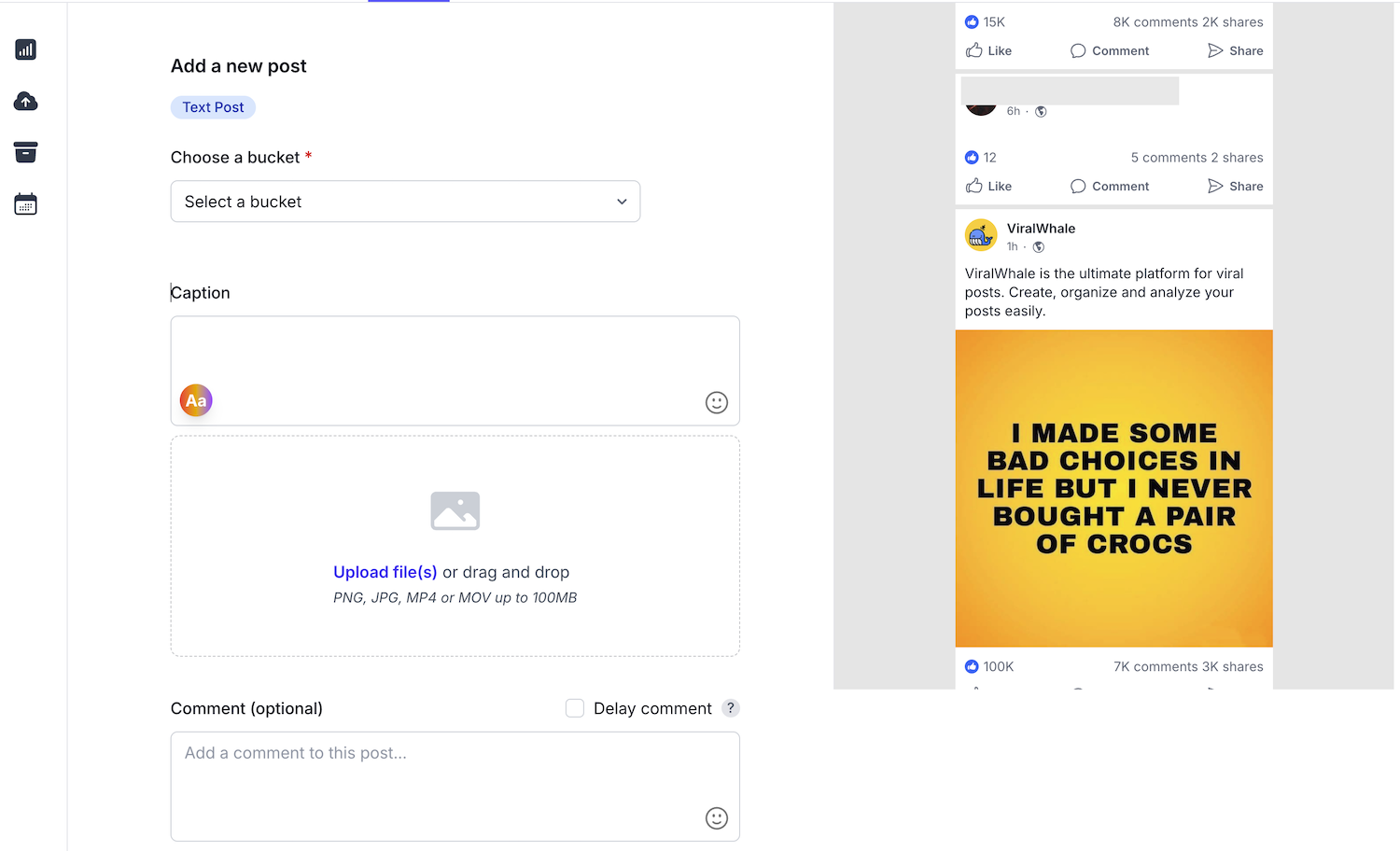
Click “+ New Post” (top right, available everywhere in the app).

Inside the post screen, you can:
- Schedule to multiple pages using buckets
- Add captions, images
- Add a first comment (and delay it to look more natural)
- Create TOBI posts (Text On Background Image)
Basically everything you actually need as a Facebook publisher.
Try it here: https://insighthive.app/
Or ping me for features: https://x.com/HuuVanTran
FAQs
1. Did Facebook remove scheduled posts?
Nope.
They didn’t remove it, they just buried it inside the post flow. Classic Facebook move.
2. Why can’t I find the schedule option?
Because it doesn’t show up right away.
You need to:
- Start creating a post
- Add your content
- Click Next
Then you’ll finally see Scheduling options inside post settings.
3. Can I schedule Facebook posts from my phone?
Yes, you can. The experience on mobile is pretty similar to desktop. You’ll still need to start creating a post, then tap ‘Next’ to access the post settings, where the scheduling options appear.
4. How far in advance can I schedule a Facebook post?
From my own testing, Facebook usually lets you schedule posts up to about one month in advance.
If you need more flexibility, tools like Insight Hive let you schedule posts much further ahead without really hitting a limit.
5. Can I edit a scheduled Facebook post after setting it?
Yes, you can. Just go to your Content Library, find the scheduled post, and you’ll be able to edit or reschedule it. I showed this earlier, but once you’re in that section, everything is pretty easy to manage.
6. What’s the difference between a draft and a scheduled post on Facebook?
- Draft = saved, not scheduled
- Scheduled post = will publish automatically at a set time
If you’re not ready yet, use drafts. If you want it to go live later, schedule it.
How I schedule and analyze our Facebook posts
I used to pay for two tools: one to schedule posts and another to see what actually worked. It was expensive, messy, and neither was really built for Facebook pages. So I built my tool that does both, properly, in one place: Insight Hive.